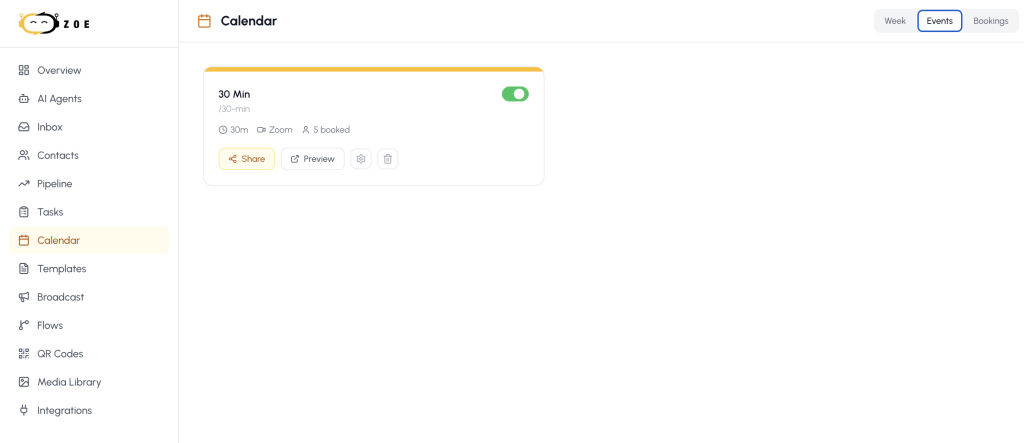
You can connect Zoe AI agent bot to your Zoom account to help set your bookings autonomously and here’s how to do it:
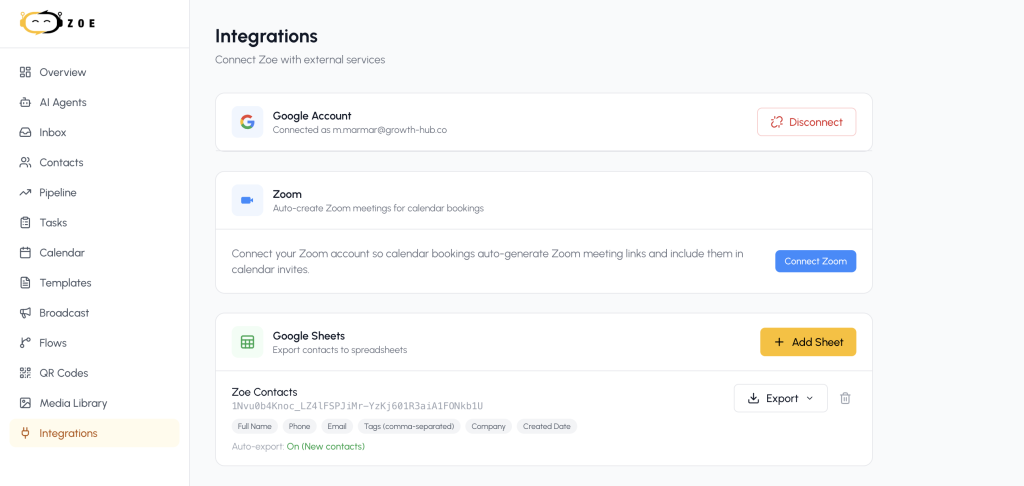
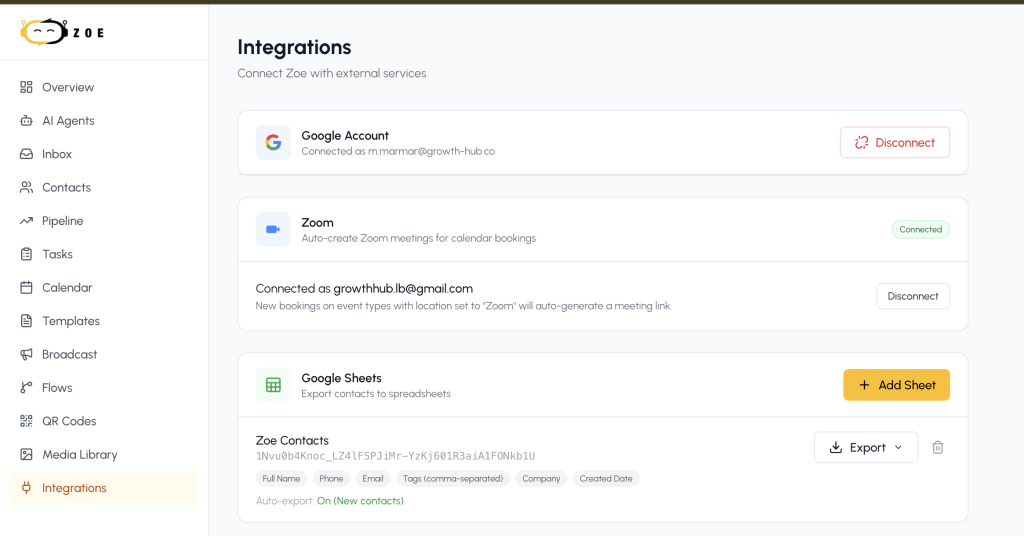
- Go to Integrations, then Connect Zoom
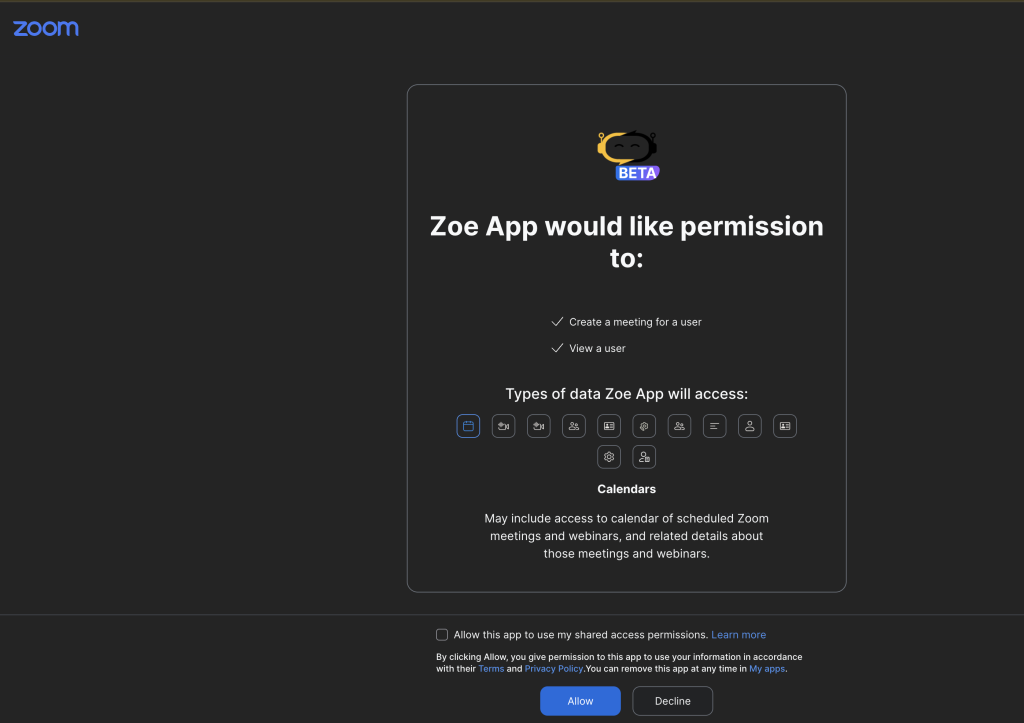
2. Grant the needed access
3. Go to Calendar -> Events (on the top right side of the screen) and press on Settings

4. And select Zoom from the Location options
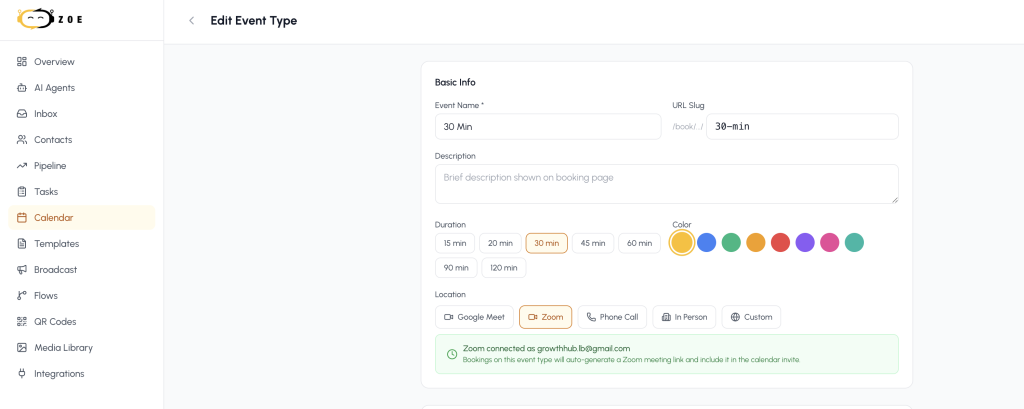
5. Now your calendar is ready to share the link with your leads
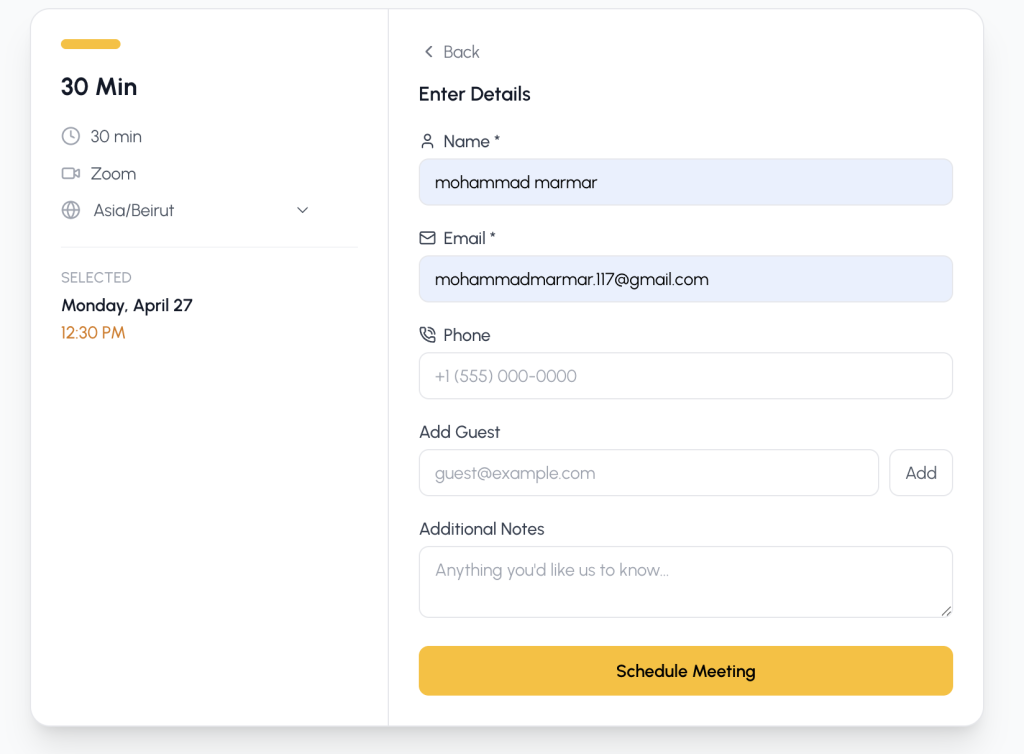
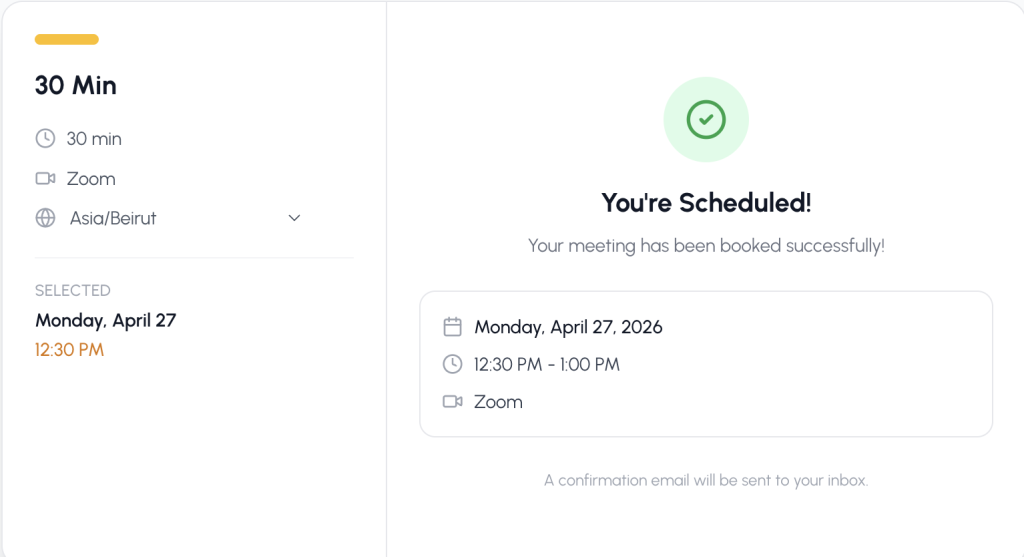
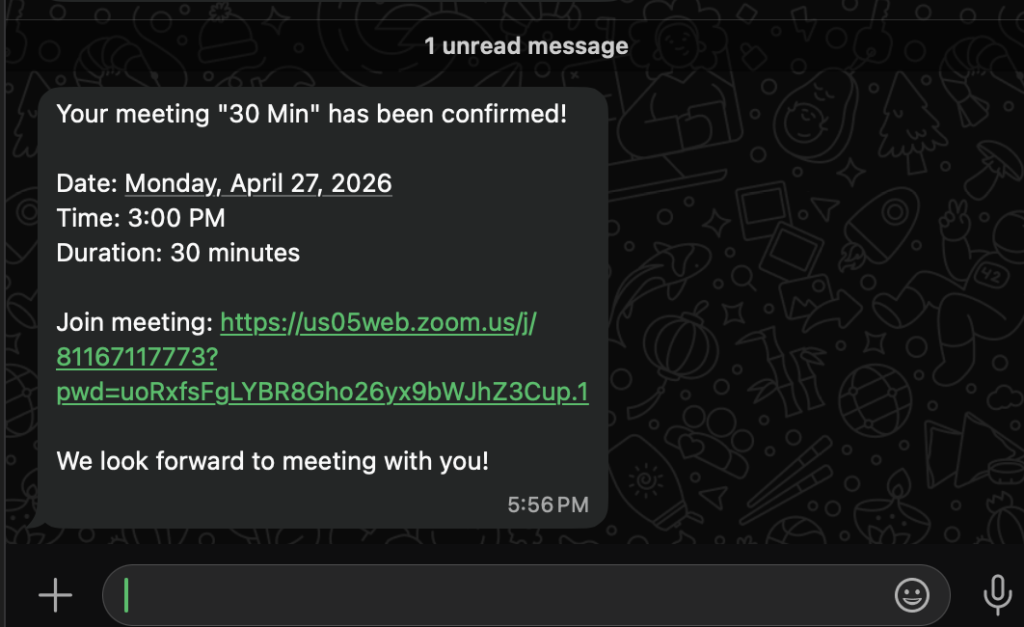
6. Once your lead books, he will receive the booked meeting detail link by WhatsApp
7. At any given time, you want to disconnect Zoom, go back to Settings, then click on Disconnect:
To connect Zoom to your Zoe AI agent, go to Integrations in your Zoe dashboard, click Connect Zoom, and grant the requested permissions. Once connected, head to Calendar → Events, open your event settings, and select Zoom as the meeting location. Your Zoe agent will then automatically generate a Zoom link whenever a lead books a meeting through WhatsApp.
Integrating Zoom with Zoe automates the entire booking process — from the moment a lead asks for a meeting on WhatsApp to the moment they receive a confirmed Zoom link. You don't have to manually create meetings, send invitations, or follow up with details. Zoe handles scheduling, sends the Zoom link via WhatsApp, and frees you to focus on the conversation itself.
Both free and paid Zoom accounts work with Zoe. Free Zoom accounts have a 40-minute meeting limit for group calls, while paid plans (Pro, Business, Enterprise) remove that cap. If your sales calls or demos typically run longer than 40 minutes, a paid Zoom plan is recommended.
Zoe requests permission to create meetings on your behalf and read your calendar availability. These permissions are required so Zoe can book Zoom meetings automatically when leads schedule through WhatsApp, and so the agent can avoid double-booking by checking your existing calendar events.
Yes. To disconnect Zoom from your Zoe agent, go to Integrations in your Zoe dashboard and click Disconnect next to your Zoom account. The integration stops immediately, and any future meetings booked through Zoe will need a different meeting location selected.
Yes. Once a lead books a meeting through your Zoe AI agent, they'll automatically receive a WhatsApp message with the Zoom meeting link, date, time, duration, and timezone. No manual sending required — the entire confirmation flow happens inside the WhatsApp conversation Zoe is already running.
Yes. Zoe supports Google Meet and other calendar-based meeting tools alongside Zoom. You can choose your preferred meeting location per event type inside the Calendar settings — for example, using Zoom for sales demos and Google Meet for internal calls.
Yes. When a lead books a meeting through your Zoe AI agent, the Zoom meeting is automatically added to your connected calendar (Google Calendar or otherwise) with the lead's details, meeting link, and time. This keeps your calendar accurate and prevents scheduling conflicts across tools.