
We will show you how quickly you can build a chatbot even if you aren’t a tech-geek. Primarily, you will need two things:
Assuming that your Verified WABA is already set up. If not, you can easily install WhatsApp Business and verify it with your mobile number.
Before proceeding, ensure you have the following in place:
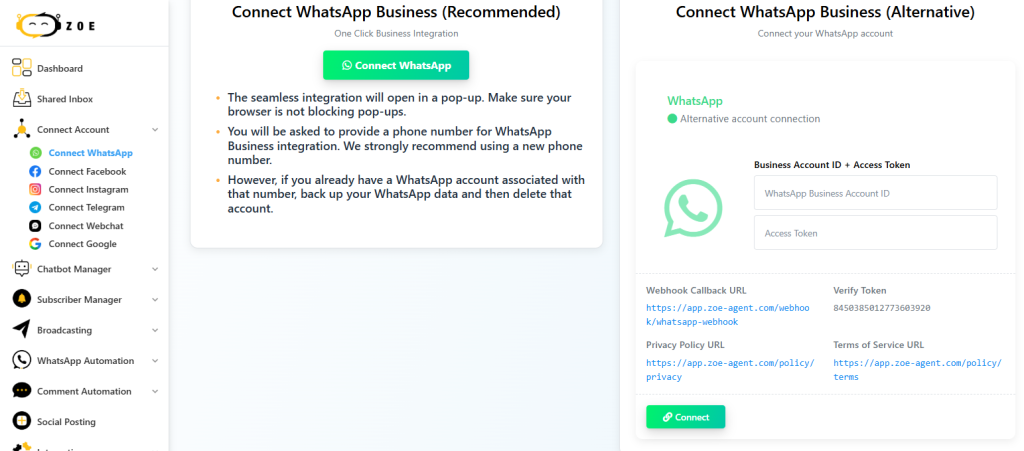
open your Zoe Agent account in your browser and from the left-hand menu tab:
select Connect Account → Connect WhatsApp.
You will see two options. Select the marked option for one-click integration.
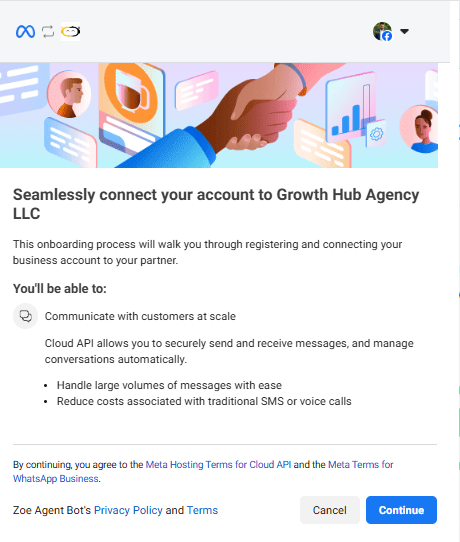
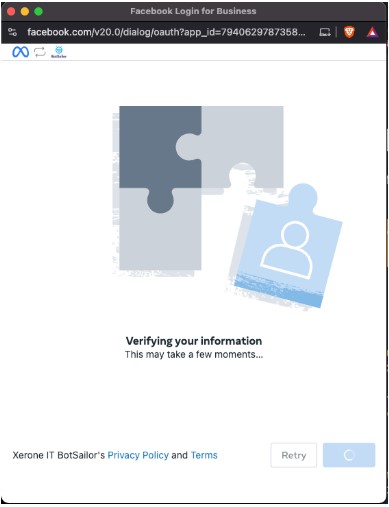
Click the continue button to start the connection process. You will then be taken to a Facebook login page.
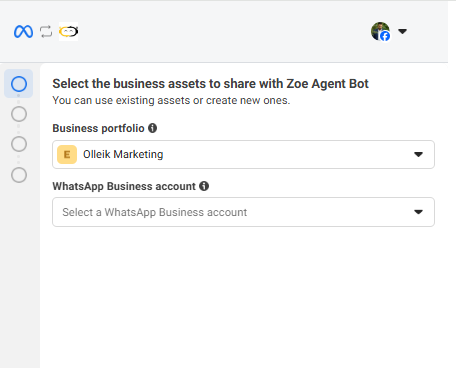
Select your WhatsApp Business account. If you manage multiple accounts, choose the one you want to connect.
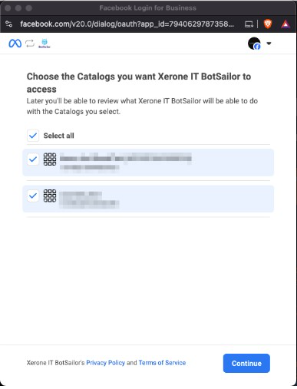
Follow any extra on-screen instructions. This could involve verifying your phone number, choosing catalogs for your WhatsApp, or agreeing to WhatsApp’s terms and conditions.
Save the connection. Once verified, Zoe Agent will finalize the link. Save any settings if prompted.
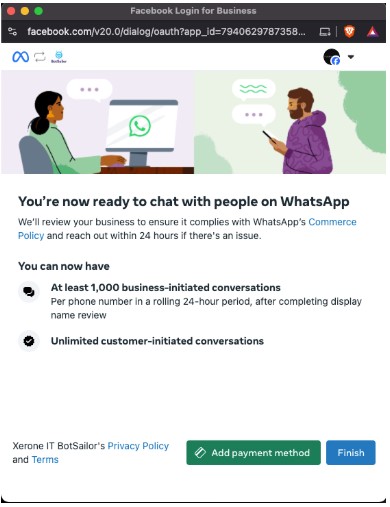
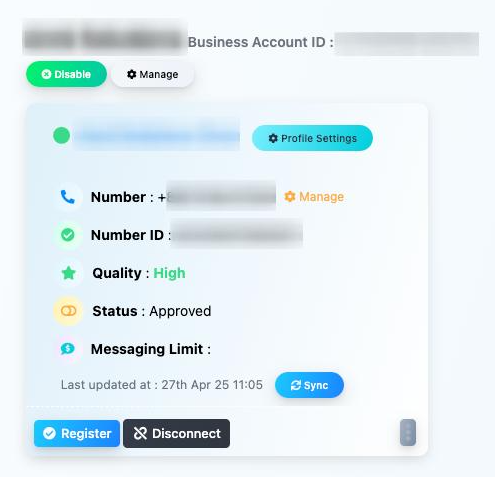
Verify the connection. Check your Zoe Agent dashboard to confirm your WhatsApp account is successfully linked. You are now ready to create bots and automations!
Troubleshooting Common Issues
If you run into problems during setup, here are some common issues and their solutions:
Error When Clicking “Finish”
- Cause: Missing or denied permissions on Facebook.
- Solution: Go back and ensure all requested permissions are granted. Retry the process.
Bad Gateway Errors
- Cause: Temporary server issues on Zoe or Facebook’s end.
- Solution: Wait a few minutes and try again. If it persists, contact Zoe support.
Permission Problems
- Cause: Insufficient access rights in Facebook Business Manager.
- Solution: Confirm your account has admin privileges and that your WhatsApp Business account is correctly linked.
FAQs
What is WhatsApp Embedded Signup?
WhatsApp Embedded Signup is a seamless onboarding process provided by Meta that allows you to create a WhatsApp Business Account (WABA), verify your business, and connect your phone number to the WhatsApp API—all without leaving the Zoe Agent interface.
What do I need before starting the embedded signup?
You’ll need:
- A Facebook account
- A Business name, legal information, and website (for Meta verification)
- A Phone number not currently registered with WhatsApp
- Access to SMS or phone call on that number for verification
Where can I find the embedded signup option in Zoe Agent?
From your Zoe Agent dashboard:
- Navigate to WhatsApp → Connect Account → Embedded Signup
- Click on Start Signup Process
- A popup window powered by Meta will guide you through the steps
What steps are included in the embedded signup process?
- Log in with your Facebook account
- Create or select your Meta Business Manager
- Add your business name and details
- Add and verify your WhatsApp number via OTP
- Approve permissions for Zoe Agent
- Complete onboarding. After that, your number will be connected to Zoe Agent.
Can I use the same number on WhatsApp mobile app and API?
No. Once a number is registered on the API, it cannot be used on the WhatsApp mobile or business app. It is exclusively tied to the API.
What if my number is already registered on WhatsApp?
You’ll need to delete the WhatsApp account from the mobile app before using it in the embedded signup process. Otherwise, Meta will block the number from being onboarded.
Is embedded signup a one-time process?
Yes. After successful setup, your number stays connected unless you manually remove or revoke it from your Meta Business Manager or Zoe Agent account.
Can I reconnect later if I accidentally disconnect my number?
Yes. Simply go through the embedded signup again or use the Reconnect option in the Zoe Agent WhatsApp settings panel.
Is embedded signup free?
Yes. Zoe Agent does not charge for the signup process. However, Meta charges per message sent based on country and category of the message.


