
Zoe Agent’s Flow Builder is an intuitive, visual drag-and-drop editor designed to help you automate business communications effortlessly. Whether you are nurturing leads, answering FAQs, or driving sales, it empowers you to create dynamic conversation flows without any coding skills.
Why Use the Flow Builder?
- Save Time: Automate repetitive tasks like answering common questions or sending reminders.
- Improve Engagement: Guide users through personalized, interactive conversations.
- Scale Your Business: Handle thousands of conversations simultaneously 24/7 without extra staff.
- Seamless Integration: Connect with APIs, Google Sheets, and CRMs to expand your bot’s intelligence.
Detailed Overview of Flowbuilder Elements
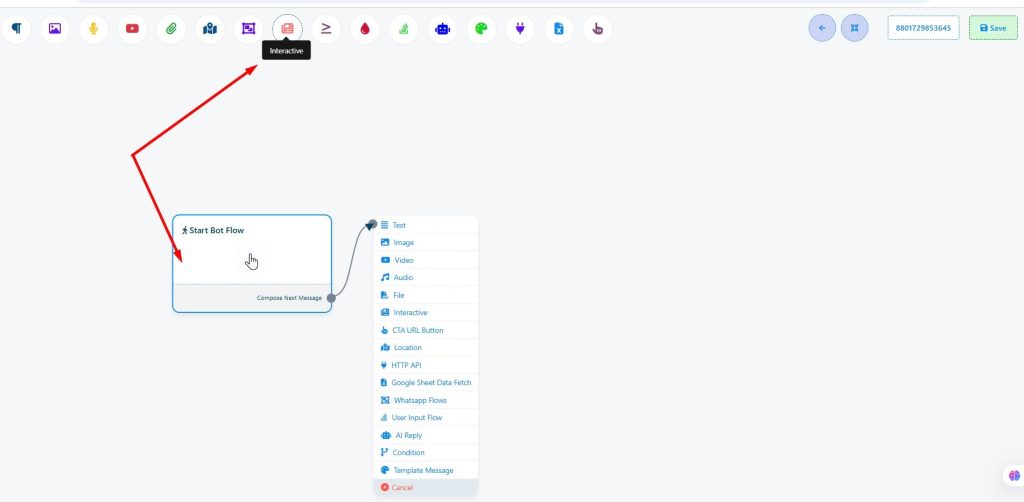
Here’s a closer look at each element available when designing a bot flow:
1. Text
Send simple text messages to users. Ideal for greetings, updates, confirmations, or FAQs.
Example: “Hi there! 👋 How can we assist you today?”
2. Image
Share visual content with your audience. Great for product photos, event banners, or showcasing special offers.
Example: Sending a beautiful product catalog image when a user asks about new arrivals.
3. Video
Deliver impactful videos directly through chat. Perfect for product demos, welcome videos, testimonials, or promotional ads.
Example: “Watch this 30-second demo to see how it works!”
4. Audio
Share voice notes, greetings, or audio instructions. Helps make conversations more personal and engaging.
Example: Sending a voice greeting from the CEO to welcome new subscribers.
5. File
Send downloadable files such as PDF brochures, manuals, price lists, or eBooks.
Example: “Here’s our 2025 Pricing Guide. 📄 Click to download!”
6. Interactive
Create buttons, lists, and quick reply options to make the chat more dynamic.
Example: Show options like “Book Now,” “Contact Support,” or “View Products” so users can easily navigate.
7. CTA URL Button
Insert Call-to-Action buttons that redirect users to any external URL.
Example: “Visit Our Store” button linked to your eCommerce site.
8. Location
Request users to share their current location.
Example: Useful for confirming delivery addresses for a courier service or food order.
9. HTTP API
Trigger external APIs to fetch or send real-time data within the conversation.
Example: Fetching order status from your eCommerce backend when a user asks, “Where is my order?”
10. Google Sheet Data Fetch
Connect to a Google Sheet to dynamically pull information or update records during a chat.
Example: Checking available appointment slots from a Google Sheet and offering booking options instantly.
11. WhatsApp Flows
Specifically create optimized flows tailored for WhatsApp conversations.
Example: Greeting new WhatsApp users with a welcome kit and interactive menus.
12. User Input Flow
Prompt users to enter data like names, emails, feedback, or any other custom information.
Example: “What’s your email address so we can send you the brochure?”
13. AI Reply
Let Zoe Agent auto-respond intelligently based on user queries using AI detection.
Example: If someone types “pricing,” the AI can auto-trigger the pricing flow without needing keyword matching.
14. Condition
Set conditional logic based on user responses or attributes to branch conversations.
Example: If the user selects “Premium Customer,” show them premium services; otherwise, show regular services.
15. Template Message
Send WhatsApp pre-approved template messages outside the 24-hour messaging window.
Example: Sending a “Thanks for your inquiry” follow-up message after 24 hours.
How to Build Your First Flow
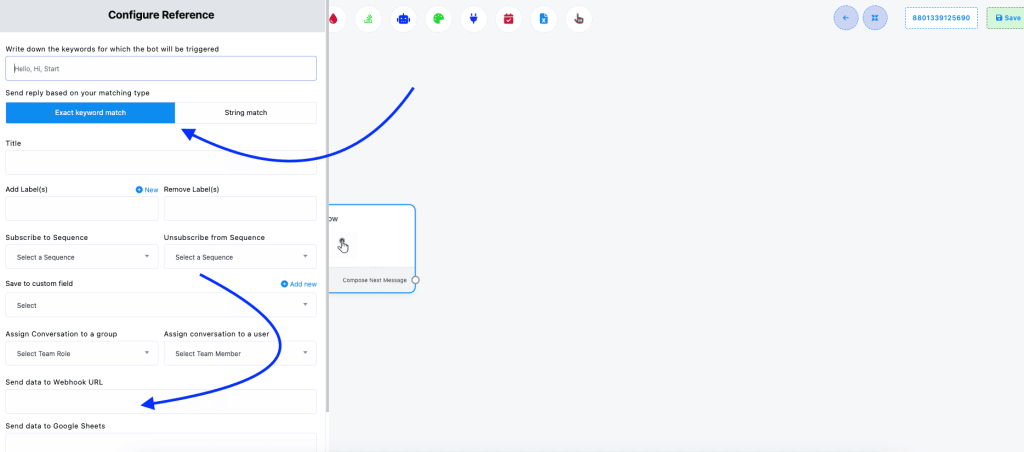
1. Configure Your Trigger Keywords
Decide how users will “wake up” your bot:
- Exact Match: The bot triggers only if the user types the exact word (e.g., “Help”).
- String Match: The bot triggers if the keyword appears anywhere in the user’s sentence (e.g., “I need help”).
2. Set Your Advanced Options (Optional)
Before the messages start, you can tell Zoe Agent to:
- Segment: Add or remove Labels.
- Enroll: Subscribe the user to a Sequence.
- Delegate: Assign the chat to a specific team member.
- Sync: Send data to a Webhook or Google Sheet.
3. Design the Conversation
Click the Start Bot Flow box and drag elements from the side panel to create your path. Connect them to build a logical progression for your customers.
4. Save and Deploy
Once your flow is complete, click the blue Save button to activate the bot.
Setting Up Your Bot Flow Triggers and Logic
To ensure your Zoe Agent chatbot responds correctly, you need to configure how it recognizes user messages and what actions it takes behind the scenes.
1. Configure Your Keywords
The trigger type determines how strictly the bot listens to user input:
- Exact Keyword Match
- The bot only triggers if the user’s message is an identical match to your keyword.
- Best for: Simple commands or fixed menu options where the input is predictable.
- Note: Any typos or extra words will prevent the bot from responding.
- String Match
- The bot triggers if your keyword is found anywhere within the user’s sentence.
- Best for: Natural, flexible conversations (e.g., if the keyword is “help,” it triggers on “I need help please”).
- Note: Avoid using single letters as keywords, as they will trigger the bot too frequently.
2. Advanced Options (Optional)
Before the first message is even sent, you can automate several management tasks:
- Audience Segmentation: Automatically add or remove Labels.
- Sequence Enrollment: Subscribe or unsubscribe users from automated Sequences.
- Data Storage: Save information (like name or phone) to Custom Fields or log it directly into Google Sheets.
- Team Assignment: Route the conversation to specific team roles or members.
- External Integration: Send data to a Webhook URL for custom third-party processing.
3. Build and Save
- Create the Path: Click the Start Bot Flow box and use the right-side panel to drag in elements like Text, Images, or Data Fetching tools.
- Save Your Work: Once your flow is built, click the blue Save button at the top-right or bottom-left to activate the bot.
Final Words
Zoe Agent’s Flow Builder is your ultimate tool for automating, personalizing, and scaling customer conversations across multiple platforms. Whether your goal is to collect leads, send promotional offers, provide instant support, or drive user engagement, the Flow Builder provides everything you need in a visual and efficient interface.
Start building your first flow today and let your chatbot work smarter for you!.


